
How to hide the price on the product page?
ℹ️ Info
Hiding the price on the product page of a free digital product is a great way to make your product page look more professional.
Hiding the price on the product page of a specific product requires creating a product template without the price and assigning it to that specific product.
Steps to hide the price on a specific product on Shopify
- Go into your theme editor by looking in your Shopify Admin dashboard and clicking on Online store on the left hand side.
- Click on Themes.
- Click on Customize.
.png?alt=media&token=6cdaae4f-6b43-4e3d-917b-4cb9101eb943)
- Click on the top middle tab
- Click on Products
.png?alt=media&token=82ee3860-0998-41ed-9616-2b41afe12114)
- Click on Create Template
- Name it something simple like “FREE_PRODUCT” and click Create template
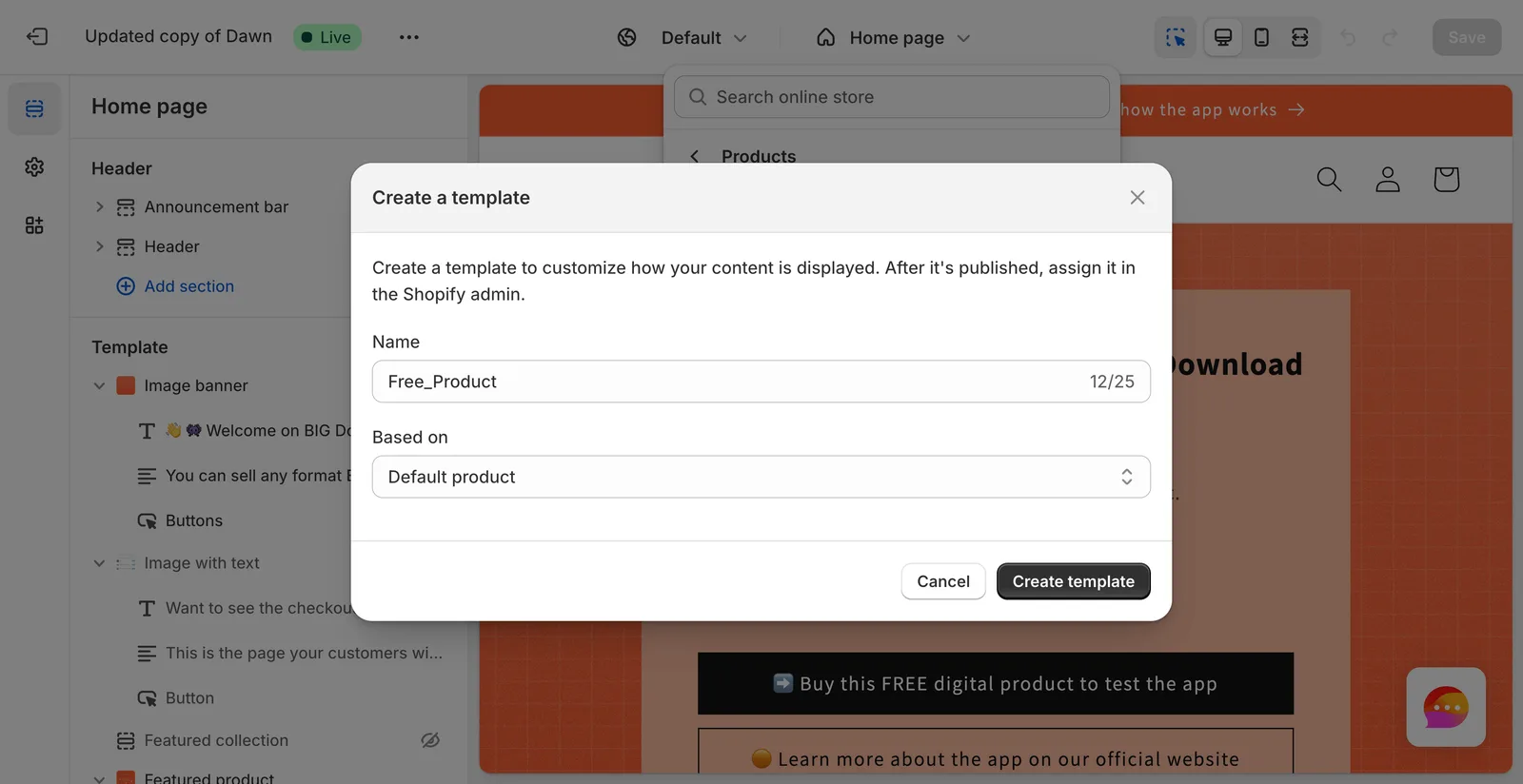
- Hide the price by clicking on the small "eye icon" next to the price block.
.png?alt=media&token=cba42582-b1ec-470d-af15-36cce570070b)
- Now go back to your Shopify Admin dashboard and go into the settings of the product you want to hide the price on.
.png?alt=media&token=9f54821e-4e7a-4d89-970c-53d6dd9f8f65)
- Click save before leaving the product settings page.
Did this answer your question?