
How to create a Scheduled Digital Product?
Do you want to sell a digital product that is delivered on a specific date and time?
Whether it’s a digital magazine released on a launch date, a seasonal product, or a scheduled event recording — this feature is made for you!
In this guide, we’ll walk you through the steps to set up a Scheduled Digital Product with Big Digital Download.
🛠️ Steps to create your Scheduled Digital Product
- From your Shopify admin, click on Apps on the left panel.
- Select Big Digital Download.
- Go to the Digital Products section.
- Click on Create Digital Product.
- Choose Scheduled Digital Product.

🔗 Link your Shopify product
This step is required.
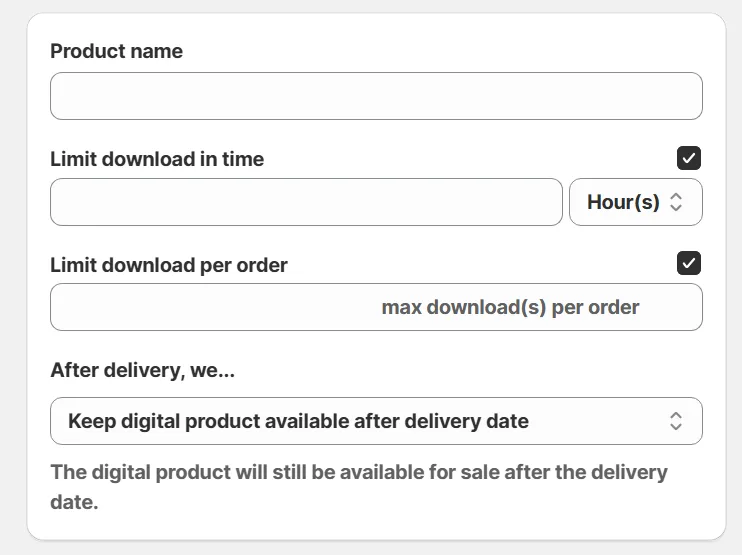
Under Product name, click Select a product and choose the Shopify product you want to connect to this scheduled delivery.
Once selected, the product name will automatically match the Shopify product you’ve chosen.
⏱️ Set product delivery limits
You’ll now see a few configuration options:
- Limit download in time
→ Allow customers to download the file only for a certain number of days. - Limit download per order
→ Limit the number of times a customer can download the file. - **After delivery, we...**
Decide what happens after the scheduled delivery date:- ✅ Keep digital product available after delivery date
→ The product will remain available for purchase. - ❌ Set digital product out of stock after delivery date
→ The product will be automatically marked as unavailable.
- ✅ Keep digital product available after delivery date
📅 Schedule the delivery date
This is where the magic happens! You’ll select when your digital product should be sent:
- Choose the specific day, hour, and minute the digital file will be emailed to your customer.
- You can also select:
- Time display format: 12-hour (AM/PM) or 24-hour
- Timezone (e.g. America/New_York, Europe/London)
🕓 Example:
Scheduled delivery date: Tue 6Aug 2025, 07:00 AM (America/New_York)
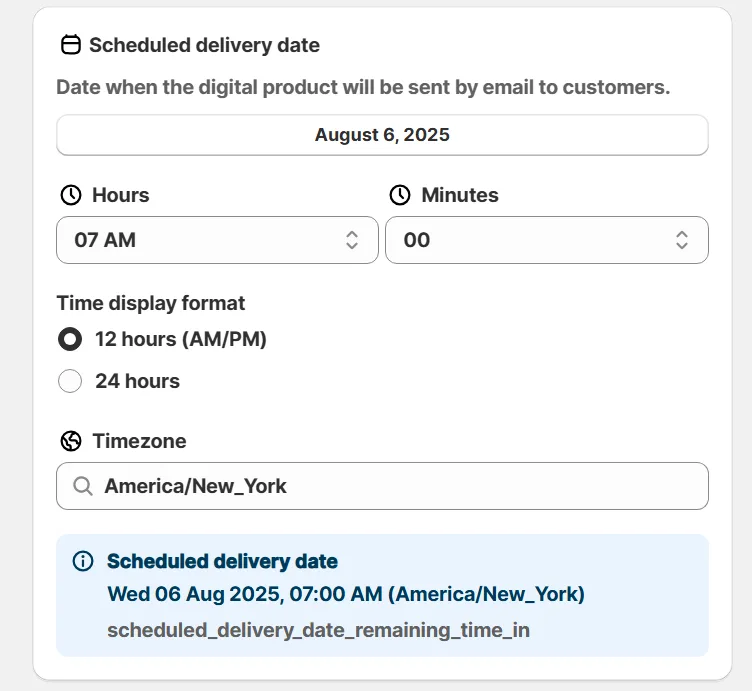
Once set, the customer will receive their digital file automatically by email on that exact date and time. No manual actions needed!
✅ Summary
| Setting | What it does |
|---|---|
| Product name | Connects to your Shopify product |
| Limit download in time | Sets a time window for downloads |
| Limit download per order | Restricts the number of downloads per customer |
| After delivery options | Choose to keep or remove product after delivery |
| Scheduled delivery date & time | Defines exactly when the product is sent by email |
💡 Pro Tip
This is perfect for product launches, timed releases, online courses, or anything where you want to control exactly when your customer receives their digital file.
Did this answer your question?